Introduction
If you are searching for Rush View APK download, you may want to install the application directly on your Android phone.
The process is simple, but Android has security settings that can stop APK files from installing.
This guide explains the full process in easy steps.
What Is an APK File?
APK means Android Package Kit.
It is the file format Android uses to install applications. When you download Rush View APK, you receive an installation package.
The file can then be opened on a compatible Android device.
Check Your Android Version
Before downloading Rush View, check your phone’s Android version.
Go to Settings > About Phone and look for Android version information.
Compare this with the requirement shown on the Rush View APK download page.
If your Android version is not supported, the application may fail to install or may not work correctly.
Check Storage Space
A lack of storage can also stop an APK from installing.
Open your phone’s storage settings and check how much free space is available.
Remove unnecessary files if needed.
Keep some extra space available because Android needs room to install the application after downloading the APK.
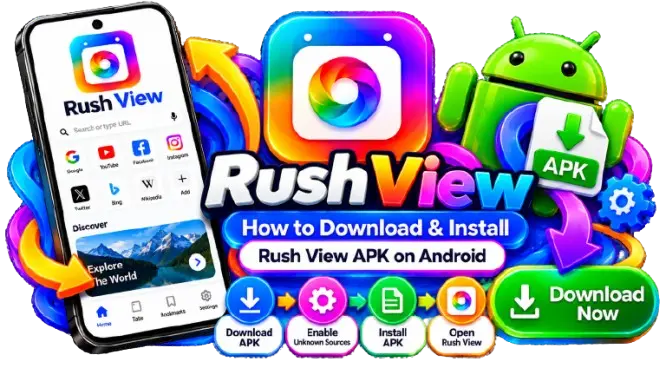
Download Rush View APK
Choose a trusted download source.
Before clicking the download button, check the application name and version.
Avoid download buttons that open multiple unknown pages.
Once the download starts, wait until it finishes completely.
Allow Unknown Apps
Android may block APK installation because the file did not come from Google Play.
Open the security settings shown by Android.
Find the option that allows your browser or file manager to install unknown applications.
Only give this permission to the application you are using for the installation.
Install Rush View
Open the Downloads folder.
Tap the Rush View APK file.
Android will display the installation screen.
Tap Install and wait for the process to complete.
If the installation succeeds, you will see an option to open the application.
Check App Permissions
After installing Rush View, review its permissions.
Only allow permissions that are necessary for the app’s normal operation.
You can usually change permissions later through Android settings.
This is a useful habit when installing any APK from outside an app store.
What If Rush View Does Not Install?
If you see an “App not installed” message, check several things.
First, make sure your Android version is compatible.
Next, check your available storage.
If both are fine, the APK may be damaged. Download a fresh copy.
Another possible cause is an existing version of Rush View. If an older version is already installed, there may be a package conflict.
Can You Install Rush View on Older Phones?
Older phones may work with older versions of Rush View.
However, older APK versions can have limitations. They may not support newer Android features or may contain old security issues.
Use an older version only when you have a clear compatibility reason.
Final Thoughts
Installing Rush View APK on Android does not require advanced technical skills.
Check compatibility, download the correct file, allow installation from the selected source, and install the APK.
Always be careful when downloading files from third-party websites.